How to see the current shortcut keys for the toolbar button
By default, Word 2007 shows document tooltips when you hover on a button, but sometimes this option can be turned off (see Turn on/off document tooltips for more details). To see the current shortcut key for the toolbar button, do the following:
1. Click Ctrl+Alt+"+" (the plus "+" button in the numeric
keyboard). Cursor will be changed to the  symbol.
2. Click on the toolbar button whose shortcut key you want to know, for example:
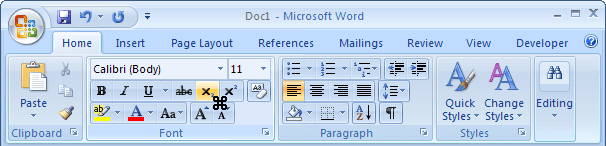
In the Customize Keyboard dialog box you can see the current shortcut key for the toolbar button and you can change it.
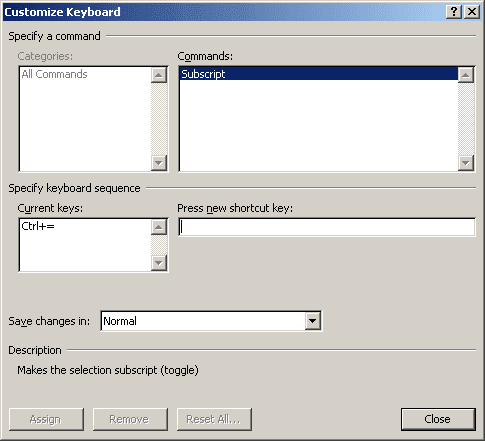
To change the current shortcut key (in this example Ctrl+=), follow next steps:
- Insert the current shortcut key and remove it
- Enter the new key combination in the Press new shortcut key field
- Click the Assign button
For more details see How to create shortcuts.