Limiting the incoming message size
If you usually receive a lot of mail, you may find Outlook's very useful feature that allows you to use Send/Receive Settings to set a limit on the size of downloaded messages. You can also prevent pictures and attachments from being downloaded.
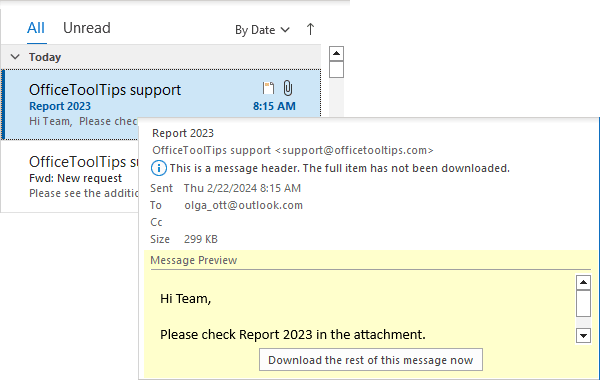
The size limit on downloaded messages provides an easy way to preview large incoming messages for your account. Instead of downloading messages that exceed the specified size limit, Outlook downloads only the headers. You can then mark the messages for download or deletion or simply double-click the message to download and open it:
Note: This option works only for Outlook accounts and accounts connected via POP3, not IMAP protocol...
Customize an account
To configure Outlook to specify a message size limit for an account:
1. Do one of the following:
- On the File tab, click Options:
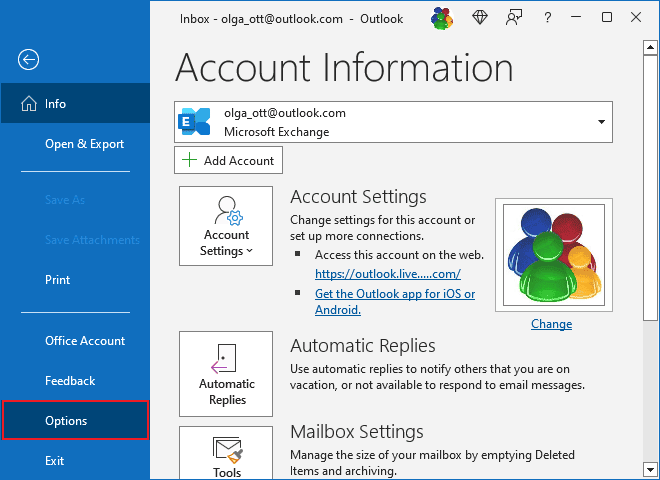
In the Outlook Options dialog box, select the Advanced tab.
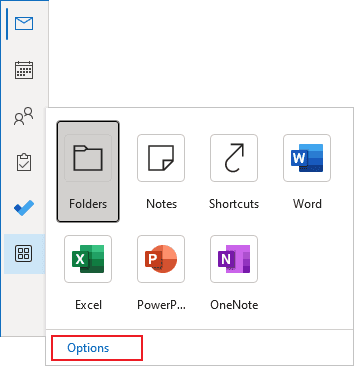
Note: You can easily open the Advanced tab in the Outlook Options dialog box by right-clicking the More Apps icon in the Navigation bar and choosing Options in the popup menu (see more about customizing the Navigation bar in Outlook):
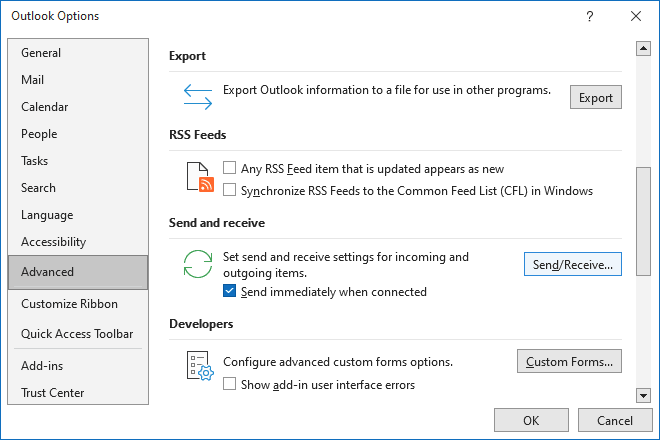
In the Outlook Options dialog box, on the Advanced tab, under Send and receive, click the Send/Receive... button:
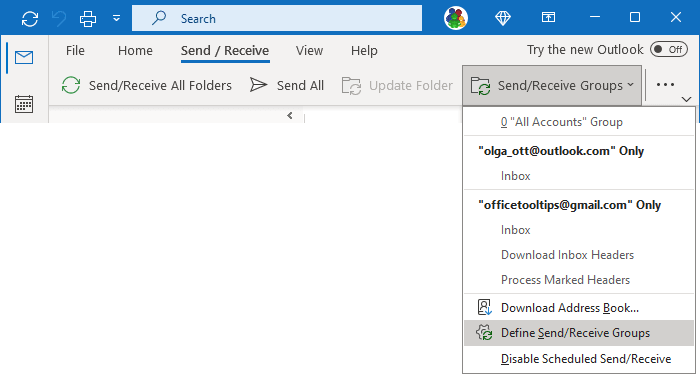
- If you use the Simplified ribbon (see more about customizing ribbons), on the Send / Receive tab, click the Send/Receive Groups dropdown list (if you don't see it on the ribbon, click the More commands button - three points to the very right of the ribbon buttons), then choose Define Send/Receive Groups:
- If you use the Classic ribbon, on the Send / Receive tab, in the Send & Receive group, click the Send/Receive Groups button, then choose Define Send/Receive Groups:
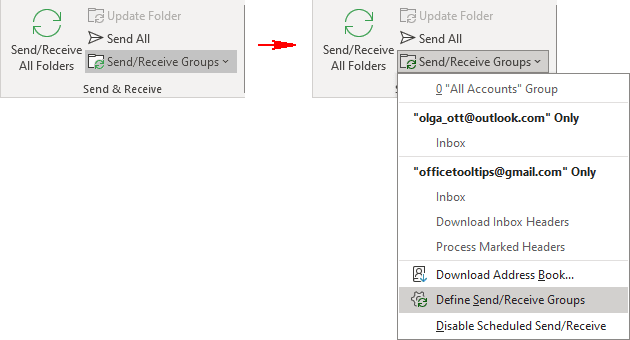
- Press Ctrl+Alt+S.
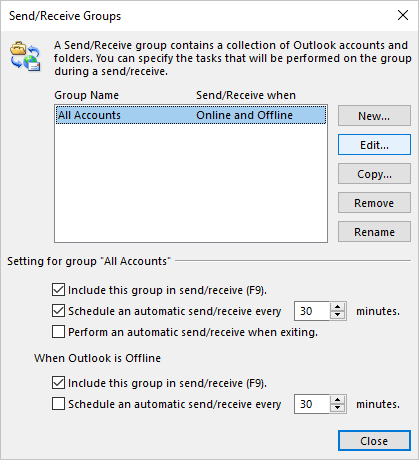
2. In the Send/Receive Groups dialog box, select a group to modify and click the Edit... button (see more about working with Send/Receive Groups in Outlook):
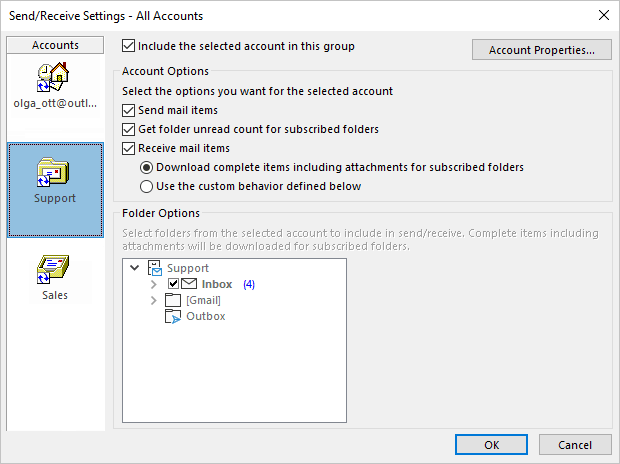
3. In the Send/Receive Settings dialog box:
- From the Accounts list on the left side of the dialog box, select the mail account for which you want to modify the settings.
Note: This option works only for Outlook accounts and accounts connected via POP3, not IMAP protocol...
- Ensure that the Include the selected account in this group checkbox is selected to see all the options.
- Select a folder from the list of folders if applicable in the Folder Options section, then:
- Select the Download Headers Only option to download only the message header and not the message body or attachments - see more about downloading e-mail headers.
- Select the Download complete item including attachments option (used by default) to download the entire message, including the body and attachments.
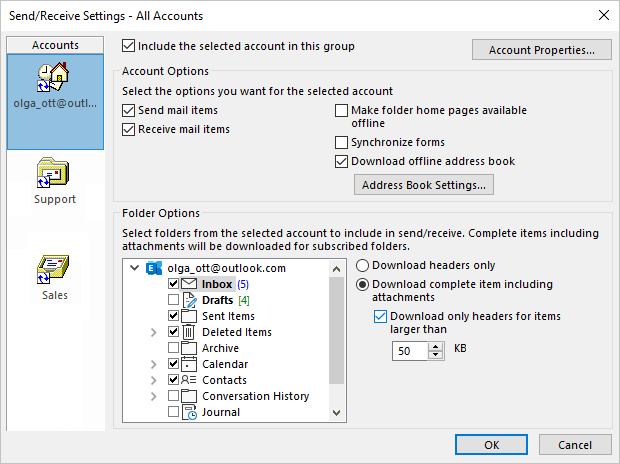
Check the Download only headers for items larger than option (unchecked by default) to download only headers for messages over the specified size instead of used by default 50 KB:
For Outlook accounts:
For accounts connected via POP3 protocol:
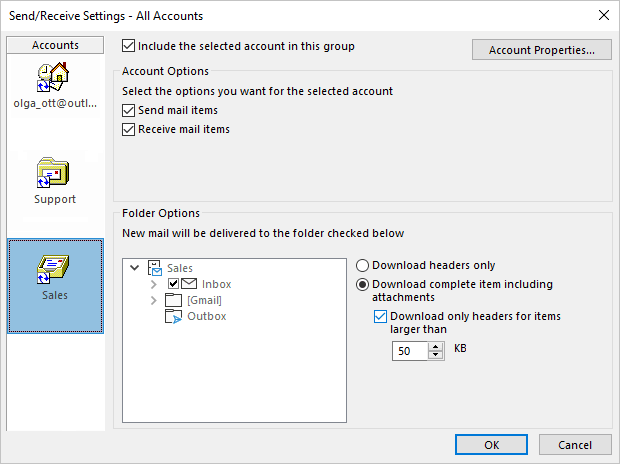
You can deselect some folders, such as Sent Items, Junk, and Drafts, that don't need to be synchronized.
Note: There are no appropriate options for accounts connected via IMAP protocol:
So, if you need to work with IMAP account message limits, you need to switch to a POP3 account. Maybe the best solution would be to create a new profile with the same account connected via POP3 instead of using the IMAP protocol.
Receive large messages
After receiving large messages in an account with a limit set, Outlook downloads only the headers:
- In the Outlook account:
- In the POP3 account:
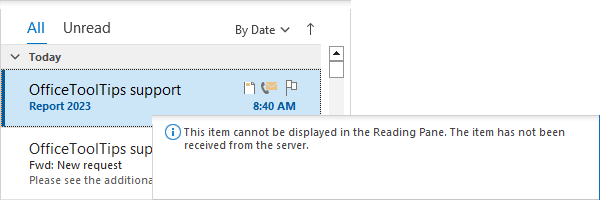
You can then mark messages to download or delete or simply double-click a message to download and open it.
Prevent Outlook from downloading images automatically
To prevent the automatic downloading of pictures in Outlook, do the following:
1. On the File tab, click Options:
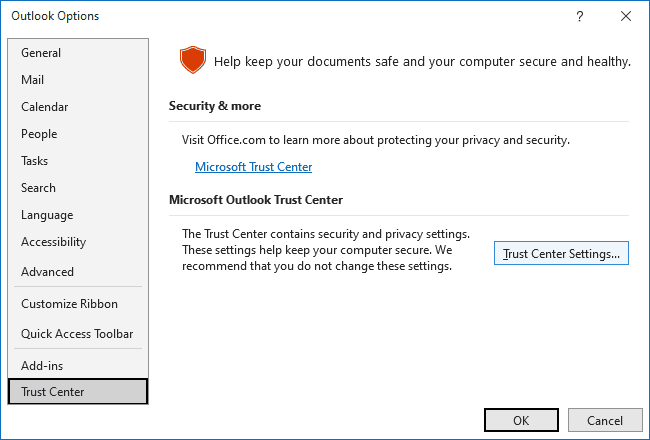
2. In the Outlook Options dialog box, on the Trust Center tab, click the Trust Center Settings... button:
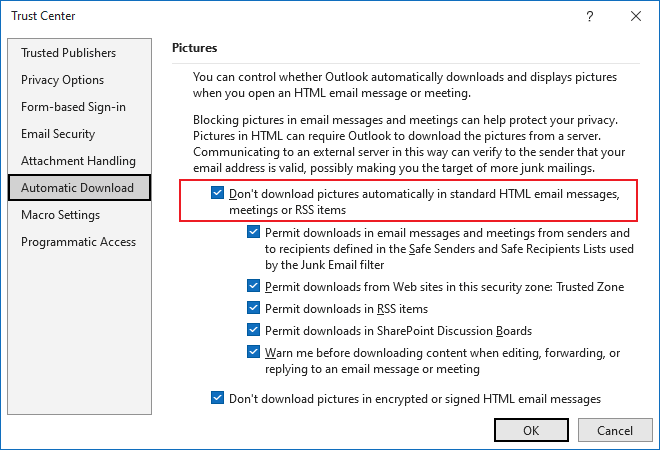
3. In the Trust Center dialog box, on the Automatic Download tab:
- Select the Don't download pictures automatically in standard HTML email messages, meetings or RSS items checkbox:
Optionally:
- Select or clear the Permit downloads in email messages and meetings from senders and to recipients defined in the Safe Senders and Safe Recipients Lists used by the Junk Email filter checkbox,
- Select or clear the Permit downloads from Web sites in this security zone: Trusted Zone checkbox,
- Select or clear the Permit downloads in RSS items checkbox,
- Select or clear the Permit downloads in SharePoint Discussion Boards checkbox
- Select or clear the Warn me before downloading content when editing, forwarding, or replying to an email message or meeting checkbox,
- Select or clear the Don't download pictures in encrypted or signed HTML email messages checkbox.
Note: If someone is on your Safe Senders list (see more about Safe Senders), the pictures will continue to be downloaded for those emails.
See also this tip in French: Limitation de la taille du message entrant.