Add and remove columns in Outlook
To add and remove columns, follow these steps:
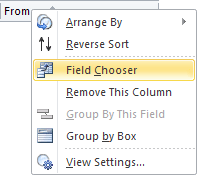
1. Open the folder that you want to modify in either Single or Preview view, right-click the column header bar, and choose Field Chooser in the popup menu:
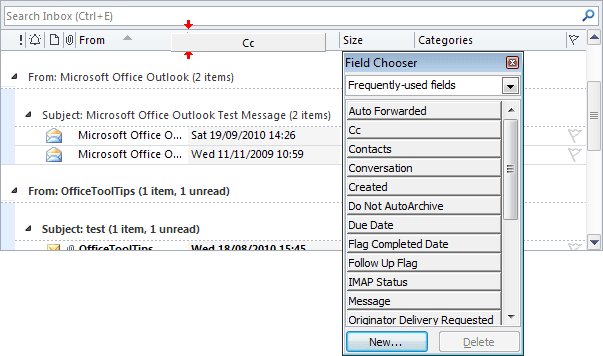
2. In the Field Chooser dialog box, find the name of the field you want to add, and then drag the field from the Field Chooser dialog box to the desired location on the column header bar. Outlook 2010 displays a red arrow at the top of the column header bar to indicate where the column will be inserted:
3. Add other fields as necessary.
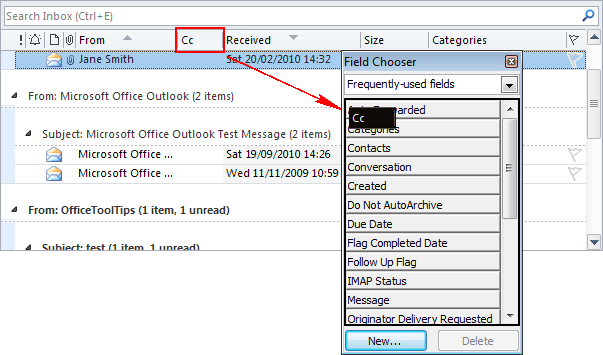
4. To remove a field, drag the field from the column header bar:
5. Close the Field Chooser dialog box.
Notes:
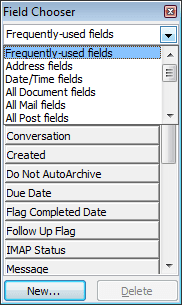
- You can choose other types of fields by selecting a type from the drop-down list at the top of the
Field Chooser dialog box:
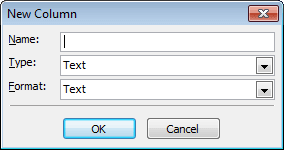
- You can also use this dialog box to create custom fields. To do this, click the New...
button, then in the New Column dialog box, enter the name and choose type and format of your
own field: