Entering decimal points automatically
- Use the Increase Decimal and Decrease Decimal places buttons
- Format cells to display the specified number of decimal places
- Customize Excel to display the desired number of decimal places
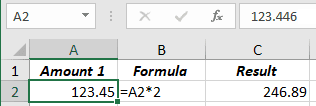
Note: Applying a number format to a cell doesn't change the value, but only how the value shows in the spreadsheet:
See How to avoid misleading numbers and Different rounding effects in Excel.
Use the Increase Decimal and Decrease Decimal buttons
To increase or decrease the displayed number of decimal places for the selected cells, on the Home tab, in the Number group, click the Increase Decimal or Decrease Decimal buttons:
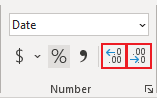
Each click on the appropriate button adds or removes one decimal place.
So, you can select an entire spreadsheet and set up as many decimal places as you need.
Format cells
To format selected cells, do the following:
1. Do one of the following:
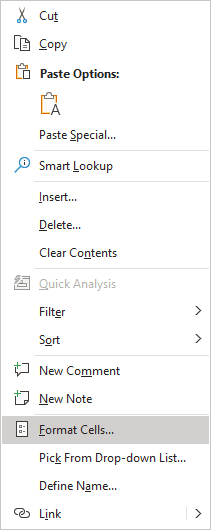
- Right-click on the selection and choose Format Cells... in the popup menu:
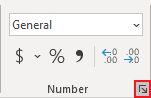
- On the Home tab, in the Number group, click the dialog box launcher:
- Press Ctrl+1.
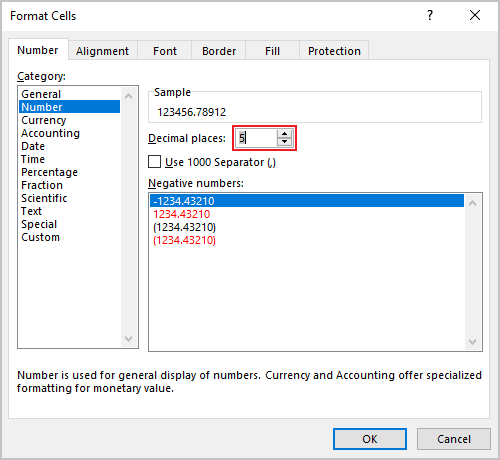
2. In the Format Cells dialog box, on the Number tab, in the Category list, depending on the type of data you have, for the Number, Currency, Accounting, Percentage, or Scientific item (see the number formats for more details), in the Decimal places field, select or type the number you need:
Set a default decimal places number in Excel
It is possible to customize Excel to display any number of decimal places instead of the default 2 decimal places.
For example, if you enter 2 in the Places box and then type 1234 in a cell, the value will be 12.34. If you enter -2 in the Places box and then type 1234, the value will be 123400.
To change the fixed-decimal-places option, do the following:
1. On the File tab, click the Options button:
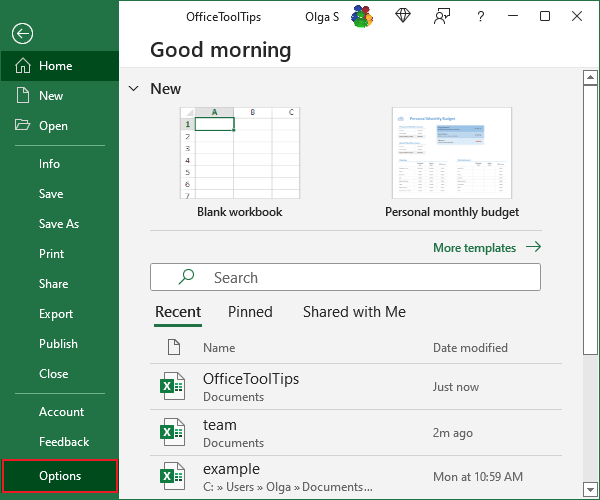
2. On the Advanced tab, under Editing options, select the Automatically insert a decimal point checkbox:
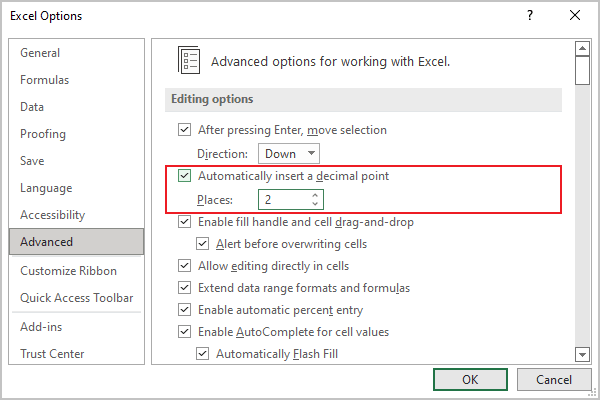
3. In the Places box, enter a positive number for digits to the right of the decimal point or a negative number for digits to the left of the decimal point.
Attention! The fixed-decimal-places option is a global setting and applies to all workbooks (not just the active workbook). If you forget that this option is turned on, you can quickly end up entering incorrect values.
The Fixed Decimal indicator appears in the status bar:

Note: The change will not affect data entered before the new decimal places value was set.
See also this tip in French: Comment changer un nombre fixe décimales.