Choosing Math AutoCorrect options
Word
2007
The Math AutoCorrect tab of the AutoCorrect dialog box lets you to control whether and where
to have AutoCorrect replace math terms with math symbols. If you use math in your documents, Math
AutoCorrect can be a great timesaver; if you don't use math, turn it off by clearing the Replace
text as you type check box on the Math AutoCorrect tab.
To open the Math AutoCorrect tab of the AutoCorrect dialog box, do the following:
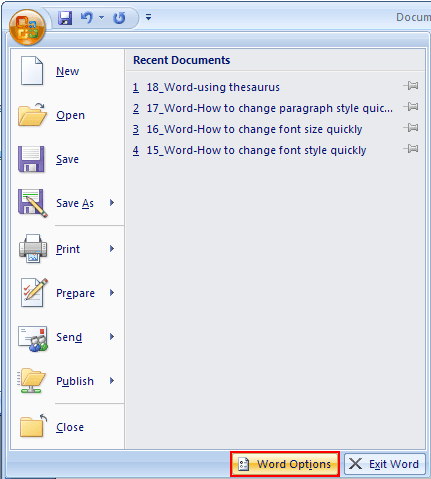
1. Click the Microsoft Office Button
 , and then click Word Options.
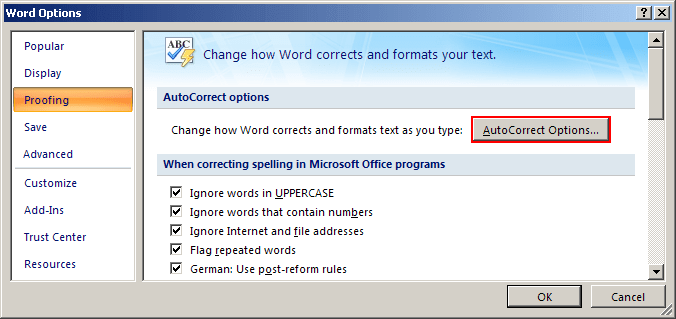
2. Click Proofing, and then under AutoCorrect options, select the AutoCorrect Options... button:
3. In the AutoCorrect dialog box, on the Math AutoCorrect tab:
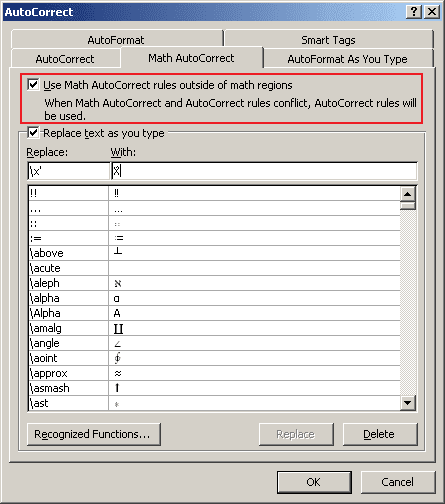
- If you don't use math, turn it off by clearing the Replace text as you type check box
- Select the Use Math AutoCorrect rules outside of math regions check box if you want to use Math AutoCorrect anywhere in your documents. If you want to use Math AutoCorrect only in math areas, clear this check box.
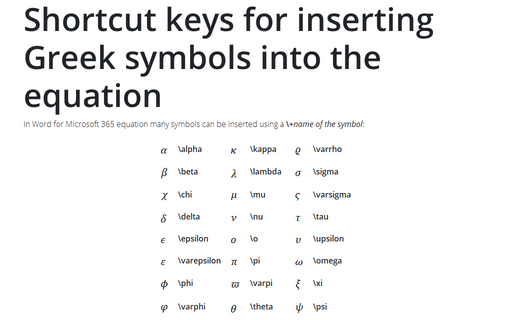
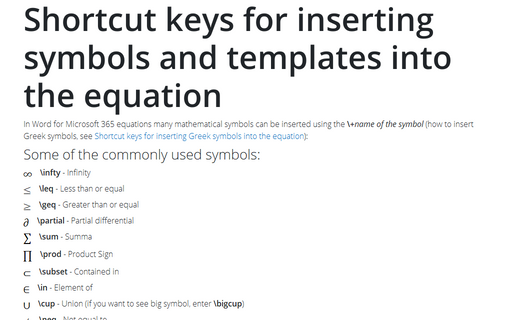
How to use Math AutoCorrect, see Shortcut keys for inserting Greek symbols into the equation and Shortcut keys for inserting symbols and templates into the equation.