Using templates to facilitate more versatile E-mail Distribution
To create an e-mail template, follow next steps:
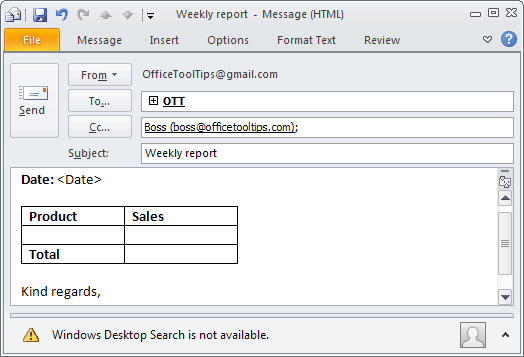
1. Create a new message, fill in the To, Cc, and Bcc address fields with the recipients you require. Add any information that you want to Subject, in the message body:
2. On the File tab, click Save As.
3. In the Save As dialog box:
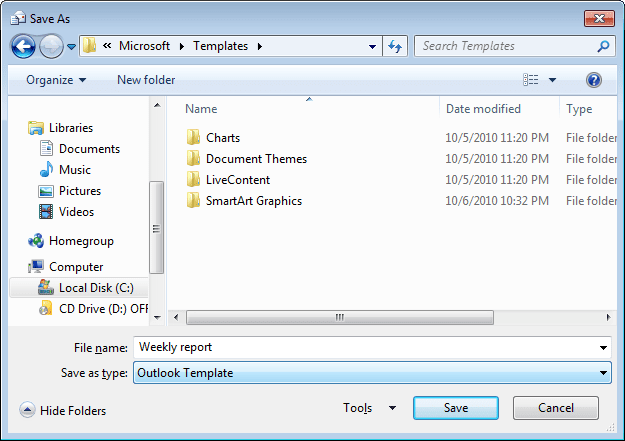
- Use the dialog box tools to navigate to the location where you want to save the template.
- The default name for the file is the subject. You can edit this if desired.
- In the Save as type drop-down list, select Outlook Template (*.oft).
4. Click Save to save the template and close the Save As dialog box, then close the message that you saved as template.
To create a message using this template, do the following:
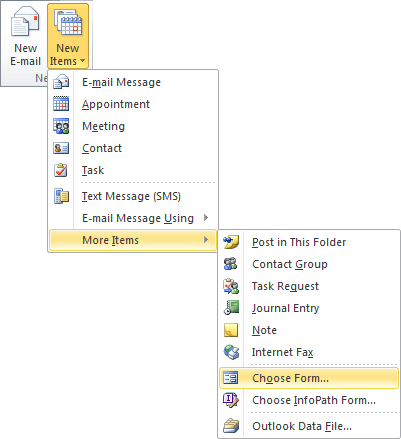
1. On the Home tab, in the New group, click in the New Items button and then choose More Items -> Choose Form...:
2. In the Choose Form dialog box, open the Look In drop-down list, and then select User Templates in File System or Desktop (if you saved your template in the Desktop):
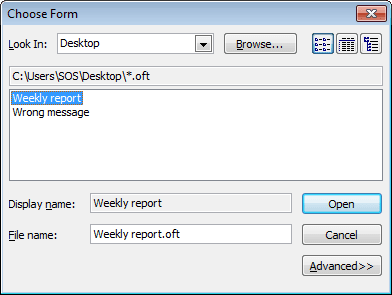
3. Highlight the template that you want to use, and then click Open.