Creating AutoCorrect Exceptions
To create the AutoCorrect exception, follow these steps:
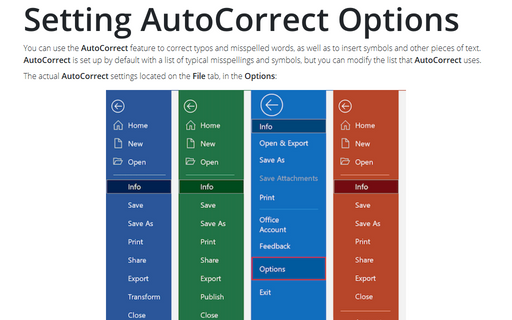
1. Click the Microsoft Office Button
 , and then click the Program Name Options button:
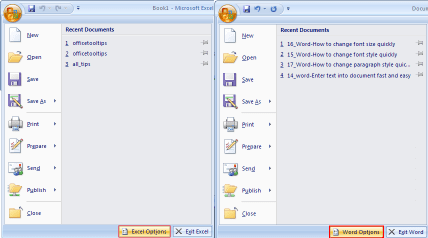
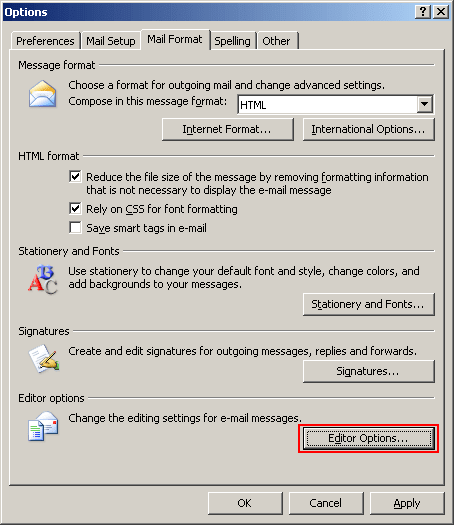
In Outlook AutoCorrect settings located on the Tools -> Options, in the Mail Format tab, click Editor Options button:
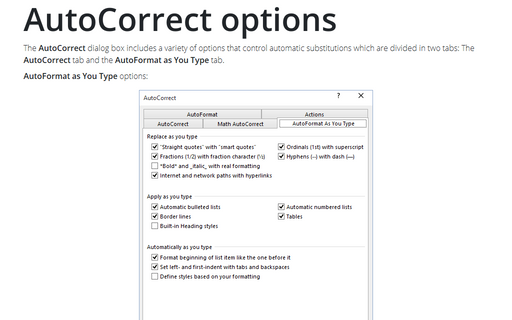
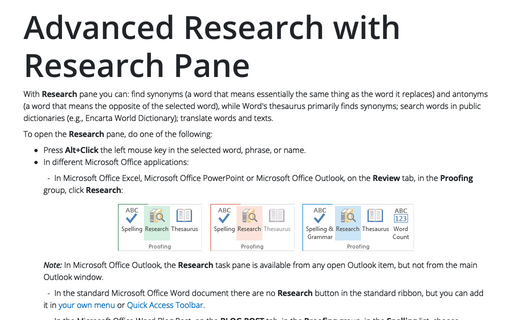
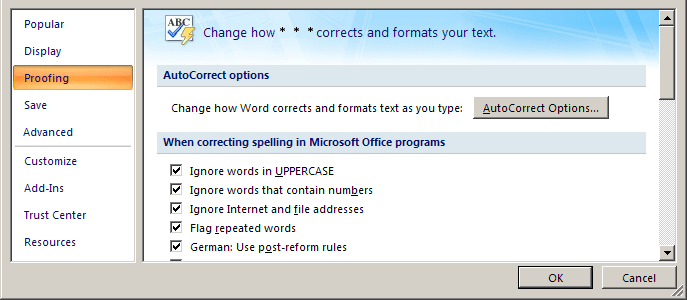
2. Click Proofing, and then under AutoCorrect options, select the AutoCorrect Options... button:
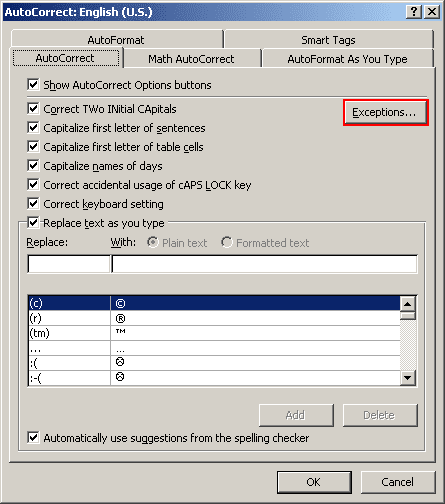
3. In the AutoCorrect dialog box, on the AutoCorrect tab, click the Exceptions... button:
4. In the AutoCorrect Exceptions dialog box:
- Click the tab for the type of exception you want to work with:
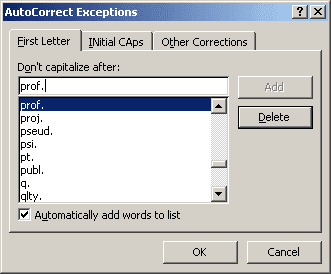
- First Letter - on this tab, list the terms that end with periods but after which you
don't want the next word to start with a capital letter. Office starts you off with a list
of built-in terms, such as prof. and vol.:
- INitial CAps - on this tab, list the terms that start with two initial capital letters that you don't want AutoCorrect to reduce to a single capital - for example, AMv3.
- Other Corrections - this tab appears only in Word and Outlook. On it, list other terms that you don't want AutoCorrect to fix.
- First Letter - on this tab, list the terms that end with periods but after which you
don't want the next word to start with a capital letter. Office starts you off with a list
of built-in terms, such as prof. and vol.:
- In Word or Outlook, select the Automatically add words to list check box if you want the program to automatically add exceptions when you undo a correction it has made.
5. When you have finished working with exceptions, click the OK button to close the AutoCorrect Exceptions dialog box.