Expanding Menus
Office
2003
By default, when you click a menu name, Office Application displays a short version menu that
contains only the commands you use frequently. You can force it always to show full menus.
To expand the menu to display all its commands, click the down-arrow button at the bottom of the menu. To configure Office Application to display the entire menu by default, open the Tools menu and choose Customize:
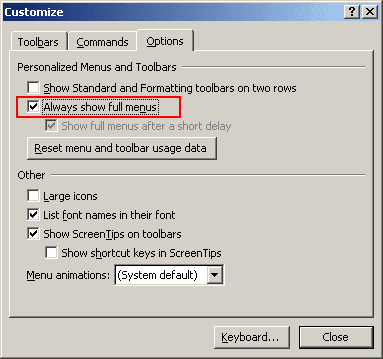
In the dialog box that opens, click the Options tab, click the Always Show Full Menus check box to put a check mark in it, and click the Close button.