Opening workbooks automatically
The location of the XLStart folder depends on Windows configuration. To determine the location of the XLStart folder on your system, do the following:
1. Click the Microsoft Office Button
 , and then click Excel Options.
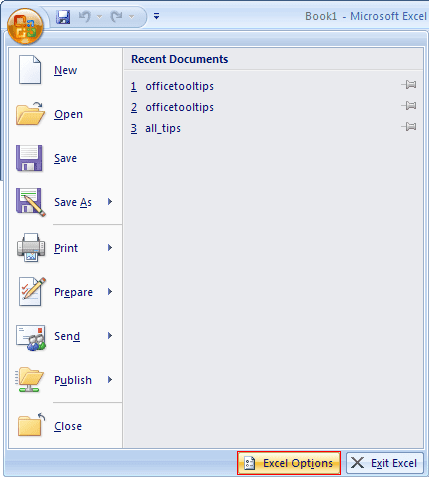
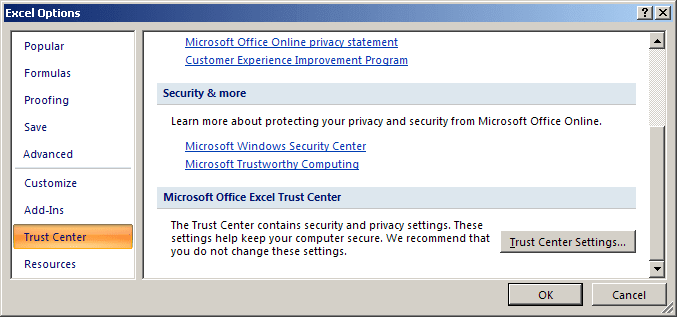
2. In the Excel Options dialog box, on the Trust Center tab, click the Trust Center Settings... button:
3. In the Trust Center dialog box, on the Trusted Locations tab, you will see a list of trusted locations:
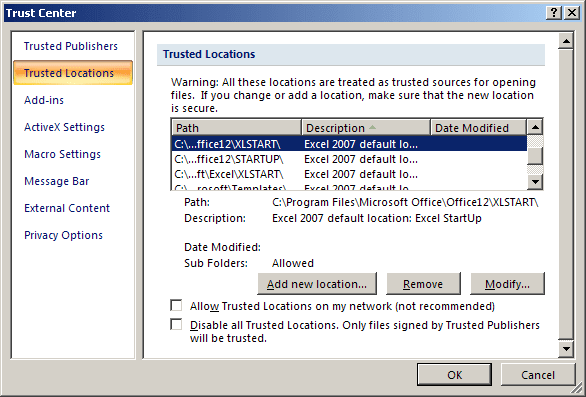
4. Look for the path for the location described as User Startup. The path might look something like this:
C:\Documents and Settings\
Another XLStart folder may be located here:
C:\Program Files\
Any workbook files (excluding template files) stored in either of these XLStart folders open automatically when Excel starts. If one or more files open automatically from an XLStart folder, Excel won't start with a blank workbook.
Note: You can specify an alternate startup folder in addition to the XLStart folder, do the following:
1. On the File tab, click the Options button.
2. In the Excel Options dialog box, on the Advanced tab, scroll down to the General section and enter a new folder name in the At startup, open all files in field:
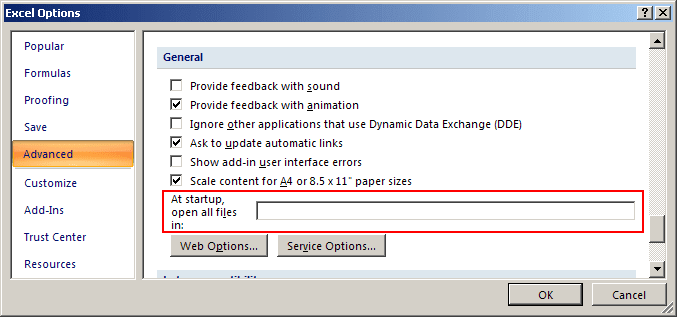
Then, when you start Excel, it automatically opens all workbook files in both the XLStart folders and the alternate folder that you specified.