How to create Master and Scrolled Detail charts
Excel
2007
When you create a chart with a scroll bar, it will be useful create a chart with all data to see which data
fragment you see in the scrolling chart.
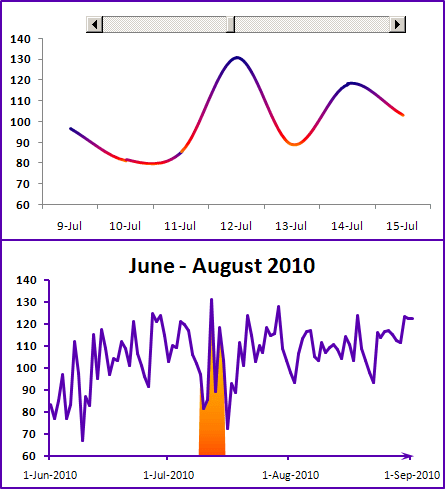
To create charts like these (sales data for the week for 3 months), do the following:
Step I: Create a chart with a scroll bar
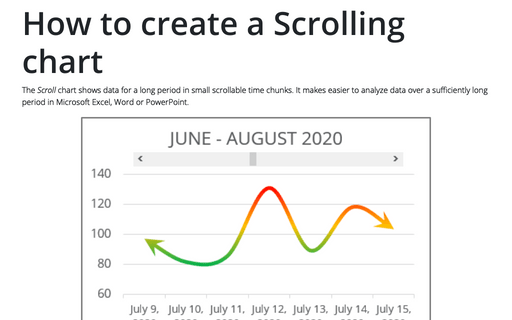
See Creating a Scrolling chart).
Step II: Create a chart with a total data
- Select the data (in this example, A4:B95).
- On the Insert ribbon, in the Charts group, choose Line:
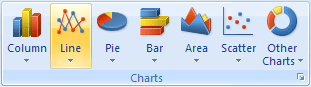
Choose the Line chart type, delete the legend.
- Move the chart so that it was placed under the chart with a scroll bar.
Step III: Add an additional data
- Add the next column to your data (in this example, C4:C95) and enter the following
formula in the first cell:
= IF (AND (ROW (A4) >= $E$1 + 3, ROW (A4) - $E$1 < 7 + 3), B4, 0).
- Copy this formula down to the other cells.
Step IV: Add a shaded box on the chart with a total data
- Select the range of the additional data (in this example, C4:C95), press Ctrl+C to copy the range. Select the bottom chart and press Ctrl+V to paste a new series to the chart.
- Select the second data series and do one of the following:
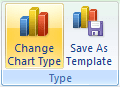
- Under Chart Tools, on the Design tab, in the Type group, choose
Change Chart Type:
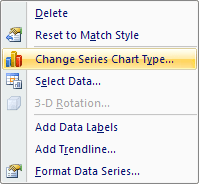
- Right-click and choose Change Series Chart Types... in the popup menu:
- Under Chart Tools, on the Design tab, in the Type group, choose
Change Chart Type:
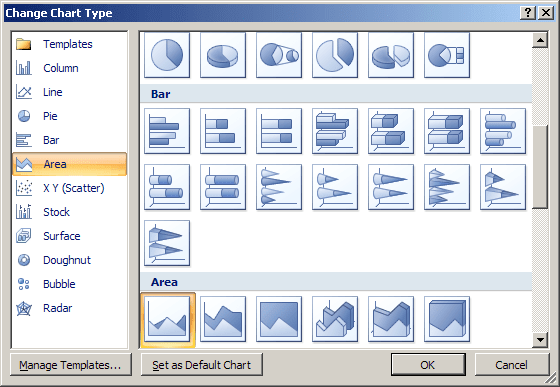
- In the Change Chart Type dialog box, choose the Area group and then choose the
Area chart type:
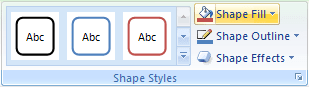
- Click the area chart to select the second series. Under Chart Tools, on the Format
tab, in the Shape Styles group, choose Shape Fill and select a color to make the
shaded box: