How to count cells by criteria
To count cells by criteria, do the following:
1. Select the cell where want Excel to return the number of cell by criteria.
2. Do one of the following to open the Insert Function dialog box:
- Select Insert -> Function...
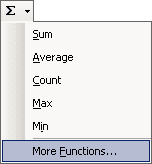
- Click the Sum button in the Standard toolbar and then select More Functions...:
- Click the Insert Function button
 in the left of the edit bar:

3. In the Insert Function dialog box full following fields:
- select Statistical in the Or select a category listbox
- select COUNTIF in the Select a function list
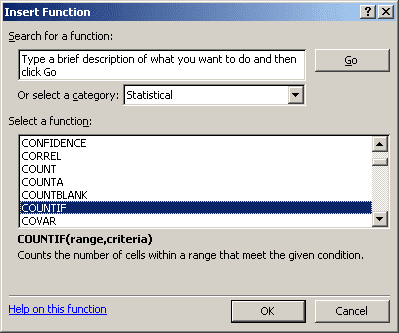
Then press OK.
4. In the Function Arguments dialog box, fill following fields:
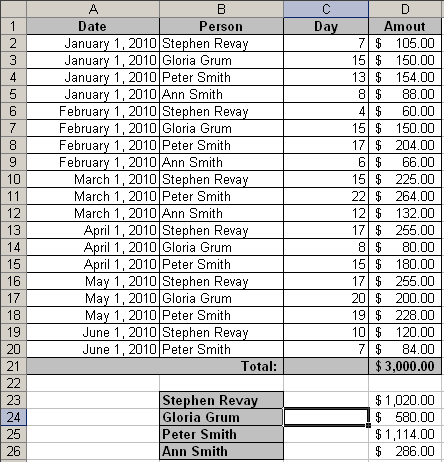
- The Range field determines the range of cells Excel will look to perform the count in. In this example the cell range is D2:D20.
- The Criteria is a conditional statement that is similar to the conditional statement in the IF statement.
5. Press OK.
Note: You can enter this formula using keyboard, for this example:
= COUNTIF (D2:D20, ">100")
If you want to use COUNTIF on a selection of cells (not necessarily one solid range), summing multiple COUNTIFs:
= SUM (COUNTIF (D3, ">100"), COUNTIF (D7, ">100"), COUNTIF (D14, ">100"), COUNTIF (D17, ">100"))
Note:
- You can use the wildcard characters, question mark (?) and asterisk (*), in criteria. A question mark matches any single character; an asterisk matches any sequence of characters. If you want to find an actual question mark or asterisk, type a tilde (~) before the character.
- Microsoft Excel provides additional functions that can be used to analyze your data based on a
condition.
- To calculate a sum based on a string of text or a number within a range, use the SUMIF worksheet function (see How to sum cells by criteria for more details).
- To have a formula return one of two values based on a condition, such as a sales bonus based on a specified sales amount, use the IF worksheet function.
- To count cells that are empty or not empty, use the COUNTA and COUNTBLANK functions.